Application for Program Completion
This guide will walk a student through submitting an Application for Program Completion in Workday.
Quick Search: Apply for Program Completion
Step 1: From your Workday homepage, select Menu on the upper left corner then select Academics under the Student Resources category.


Step 2: Select Apply for Program Completion in the Program Completion section.

Step 3: Select the Academic Period for which you are applying. If you only have one program of study, the Academic Record and Name fields will be prefilled, move on to Step 4.
Note: If you are completing two programs in the same academic term (i.e., Bachelors Degree and a Graduate certificate), you will need to apply for one program at a time. Workday will not allow you to select both programs.

Step 4: Select the check box for the program of study you want to apply for program completion. Then, select the Anticipated Academic Period for Completion. Select Confirm.
Note: If you have more than one program of study, you will also need to select an option for the Academic Record field. If you only have one program of study, the Academic Record and Name fields will be prefilled.
Note: The Expected Completion Date must be on or after today’s date.

Step 5: Select Submit.

Step 6: Select Done.

How to Check Application for Program Completion Status
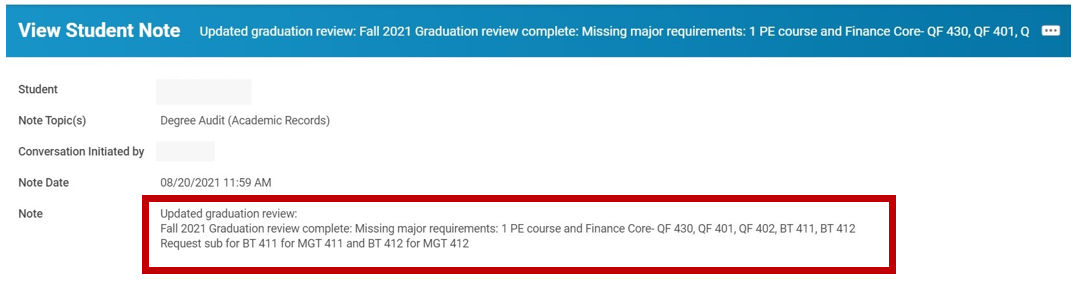
Once a student submits their Application for Program Completion, it will be reviewed by The Office of the Registrar. The Registrar will use the Notes function in Workday to inform the student of any missing requirements or courses that could prevent the student from completing their Program of Study.
Additionally, the Registrar will send the student an email to encourage them to check their Notes in Workday and work with their advisor to address the missing requirements or courses.
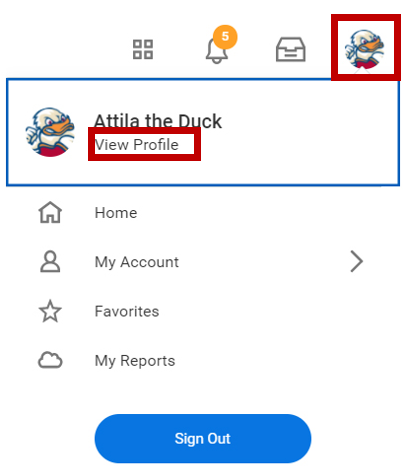
Step 1: Select your profile image on the Workday homepage – Select View Profile
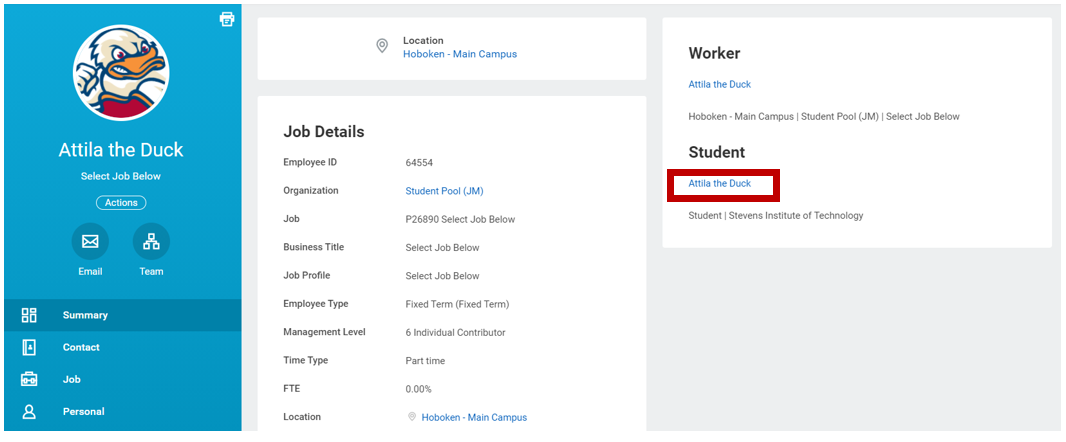
Note: If you have an active campus job, select your student profile before continuing to step 2.
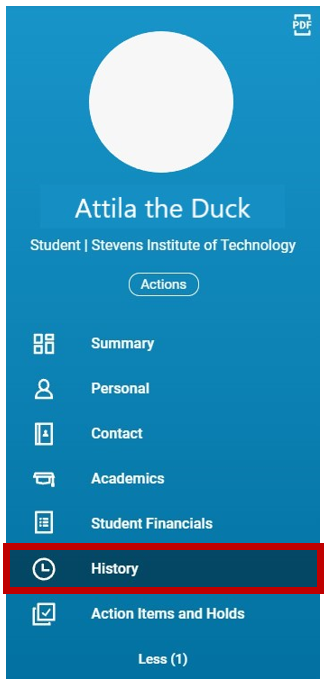
Step 2: Select History
Step 3: Select Note Content on the desired Note entry
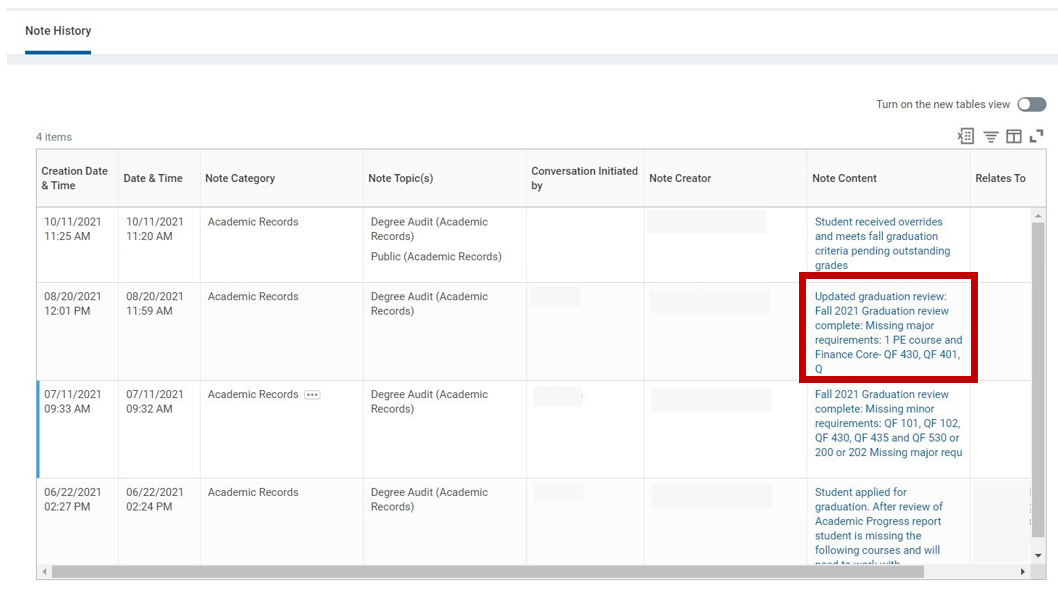
Step 4: View Student Note for Graduation Review details provided by the Office of the Registrar.
Note: Students can also check their overall Program Completion Status via the SI - View my Program Completion Status option on their Academics dashboard:

Experiencing an issue or need additional support? Contact our OneIT Team by